
October 15, 2026 · 16 min read
How to Add Your Resume to LinkedIn (and When Not To)
A resume can live in three different places on LinkedIn and they do different jobs. Here is how each works, who sees it, and when a link beats a file.
To add your resume to LinkedIn, open the Jobs tab, go to your application settings, and upload the file in the resumes section. That copy is stored for Easy Apply and is seen only by employers you actually apply to. To show a resume publicly instead, add it as media in the Featured section of your profile, or share it as a document post. Those are three separate features with three different audiences, and the two public ones are often a bad idea.
Most guides treat this as one task with one set of clicks. It is not. Below: the three places and who sees each, the steps for all three on desktop and in the app, how to replace a stored file and get a resume back out, and the argument nobody else makes — that a resume on your public profile hands your address and phone number to anyone who asks.
The three places a resume can live on LinkedIn
Get the model straight first, because choosing the wrong feature is the real mistake. Uploading a resume while applying does not put it on your profile, and a resume on your profile is not available when you apply. They are unrelated stores.
One: your job application settings. A short list of resumes you have used for applications, reached through the Jobs tab. Easy Apply picks from it and remembers the last file you used. Profile visitors never see these.
Two: the Featured section of your profile. Featured sits near the top of your profile and can hold uploaded media, a PDF included. Anything in it is visible to whoever can see your profile — for most people, anyone on the internet — and it can be downloaded.
Three: a post, or a link in a comment. Public in the same way, and short-lived: posts surface while fresh, then sink. It tells your network you are looking; it is not a home for a file.
One caveat. Everything below describes LinkedIn's interface as it stands in October 2026. LinkedIn moves these controls and renames their labels often, so we describe each step by the words printed on screen rather than where a button sits. If a label has changed, search LinkedIn's own Help Center for "upload a resume" or "application settings".
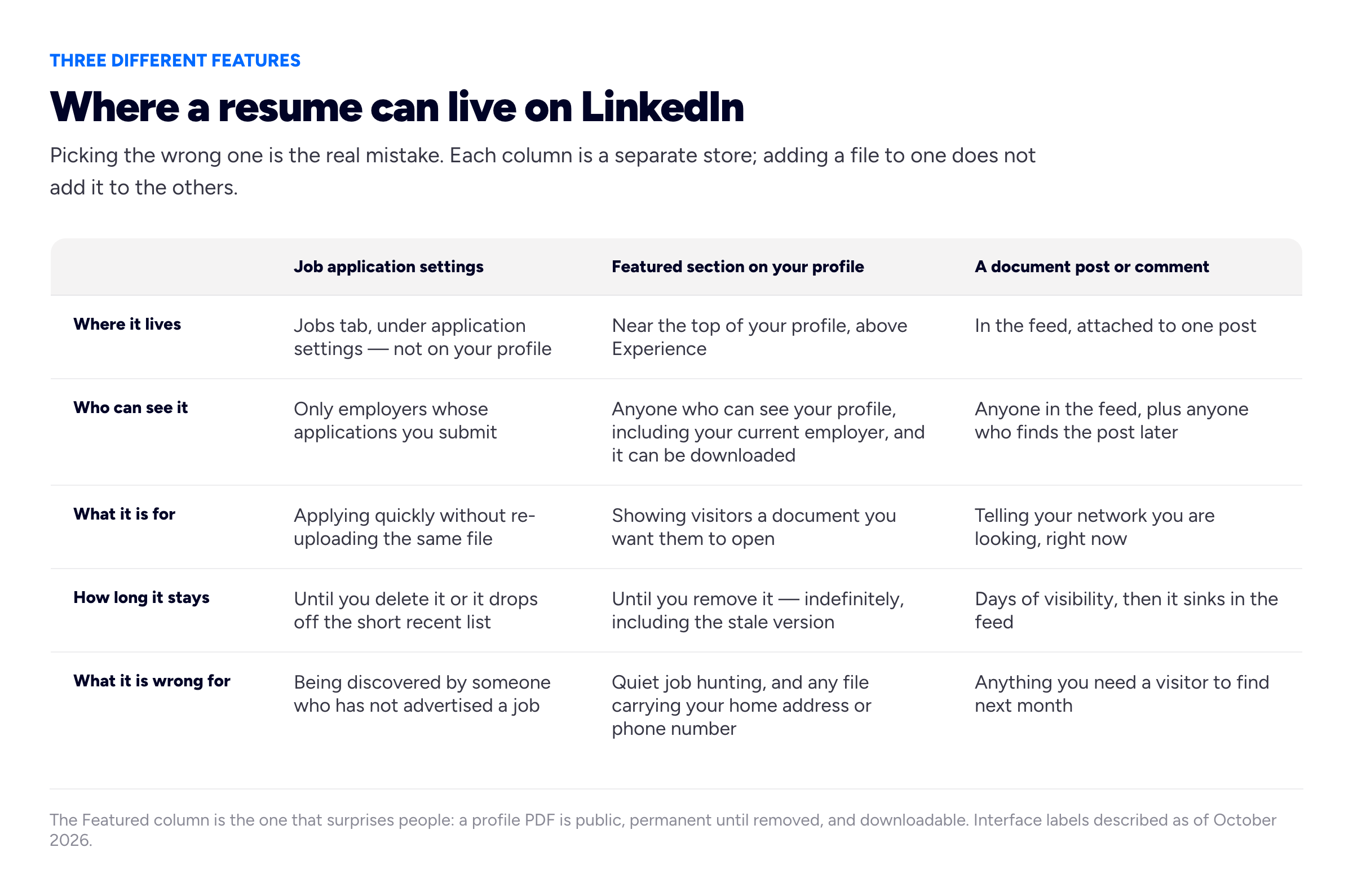
The column that catches people out is the middle one. A file in Featured is public, downloadable, and stays exactly as stale as the day you uploaded it.
How to add a resume to your job application settings
This is the method most people want: the file stored here is what Easy Apply offers next time.
On a desktop browser
- Click Jobs in the top navigation.
- In the left-hand menu, open Preferences, then look for Application settings. On some accounts it is reached from a My Jobs screen instead; the label to hunt for is "Application settings".
- Find the section headed Resumes and application data, or simply Manage your resumes.
- Click Upload resume and choose your file. The dialog names the formats it accepts — PDF and Word documents — and refuses anything else.
- Wait for the filename to appear in the list. If it does not appear, nothing was saved.
The first time you use Easy Apply, the form itself offers an upload button, and that file is saved into this same list, which is why people find resumes here they do not remember adding.
In the iOS or Android app
- Tap Jobs in the bottom bar.
- Tap the settings icon — a gear or slider control — at the top of the Jobs screen.
- Choose Application settings.
- Tap the resumes section, then Upload resume, and pick the file from your device or cloud storage.
On a phone, save an email attachment into your device's files app first; LinkedIn's picker reads from there reliably and from some email apps not at all.
What Easy Apply does with it
Easy Apply pre-selects a resume, normally the one you used most recently. You can change it, but the field is easy to scroll past and the submit button sits below it. That is why stale resumes get sent. Many adverts also hand you off to the employer's own applicant tracking system, where you upload again and the document's own formatting decides whether it parses.
How to add a resume to the Featured section of your profile
Read the privacy section below first. If you still want a document on your profile, here is how.
On a desktop browser
- Go to your own profile and click Add profile section.
- Expand Recommended and choose Add featured. If Featured already exists, use the plus icon inside it.
- Choose Media; the other options are posts, articles and links.
- Select your PDF, then give it a title and a short description. Skip the title and visitors see a filename.
- Save, then load your own profile while signed out to check what a stranger sees.
In the mobile app
- Tap your profile photo, then View profile.
- Tap Add section, open Recommended, choose Add featured.
- Tap Media, pick the file, add a title and description, and save.
Featured accepts links as well as files, and that is the most useful fact here. The slot that holds a stale PDF can hold a URL that is always current.
How to post a resume, or share it in a comment
The third method is the loudest and shortest-lived. In the share box at the top of your feed, choose Add a document — on desktop it may sit behind a More or paperclip control — then select your PDF and title it. LinkedIn shows it as a swipeable preview rather than a download link. The audience setting defaults to Anyone; switch it to Connections only if you do not want the file shared onwards. And write something in the post: a document with no sentence about the work you want is a file, not a message.
What you can attach to a comment is more limited and has changed more than once, so do not plan around it; a link with one line saying what it is always works.
Replacing, renaming and deleting a stored resume
Return to application settings. Each stored resume has a small menu beside it, usually three dots, offering Delete and often Rename. There is no in-place replace: upload the new file, then delete the old.
LinkedIn keeps only a short list of recently used resumes, not an unlimited library. The exact number has changed more than once, so we will not print a figure you might act on after it has moved — open the list and count. If an upload is refused and several files are already stored, the cap is the likely reason, and deleting the oldest clears it.
Then do the thing almost nobody does: rename the files so you can tell them apart under time pressure. A list reading "resume.pdf", "resume (1).pdf", "resume-final.pdf" is how a two-year-old document reaches the job you most wanted. Put a role and a year in each name, and delete anything you would not want sent. An old copy no longer matches your current skills section, and may be the wrong length for the roles you are chasing.
How to download a resume from LinkedIn
Three different things get called this, producing three different files.
Saving a profile as a PDF. On your own profile, look for a Resources or More control near your name; the item is labelled something like Save to PDF. The same action works on other people's profiles, which is worth remembering when you consider what a public profile gives away. What comes out is a summary in LinkedIn's section order and typography, not a designed resume. For a proper document, start from the content: our free resume builder runs in a browser, and what makes a resume stand out covers the writing.
Retrieving a file you uploaded. Go back to application settings; where LinkedIn offers a download, it is on that file's own menu. If none appears for your account, use the next route.
Requesting your data. LinkedIn lets you ask for an export of your own data from the settings area, under the data privacy headings. You choose what to include, and it emails you when the archive is ready. We are deliberately not printing a click path, because this part of settings has been reorganised most. Search Help for "download your data". An export like this is a right rather than a favour in the UK and EU, and the GOV.UK summary of data protection sets out plainly what you may ask any company for.
File format, filename, and what quietly breaks
Use PDF unless the employer asks for Word. A PDF looks the same everywhere; a Word file re-flows on a machine with different fonts, and a careful two-page document arrives as two and a half. Send Word when it is asked for — some agencies edit your document before passing it on. An advert's stated format beats any general rule, this one included.
Name the file as if it will sit in a folder with two hundred others, because it will: your name, the role, the year. For an invented designer called Esme Trevail, Esme-Trevail-Product-Designer-CV-2026.pdf tells a recruiter what they have opened before they read a word. CV_final_v3.pdf tells them nothing.
The failure that silently costs interviews is the image-based PDF. If you scanned a printed resume, or exported it from a design tool as a flattened picture, the file holds no text, only a photograph of text. It looks perfect to you and parses as empty. Open it and try to select a sentence with your cursor; if nothing highlights, no system can read it. Our guide to ATS resume formatting covers the rest, including the columns and skill bars that scramble when a document is parsed.
Who sees it, and when a resume on your profile is a bad idea
A resume is not a biography. It is built for one audience and contains, in most people's version, a phone number, an email address, a home town or full address, and every employer you have had with dates. On a public profile that becomes one downloadable package. Careers guidance has been moving the other way for years: the National Careers Service and Prospects both describe contact details as name, phone, email and location rather than a full postal address, and the Europass CV format treats most personal details as optional.
- Your current employer can see your Featured section. No setting shows it to recruiters and hides it from colleagues.
- A file can be copied, and then it is out of your hands. Removing it from LinkedIn removes it from LinkedIn.
- The copy people see will be the stale one. You will update your working resume and forget the profile copy, and months later someone reads a document describing a job you have left.
So, a plain recommendation. Openly job hunting: application settings, plus, if you want one on your profile, a trimmed version showing your email only. Job hunting quietly: application settings and nothing else, because there is no safe way to advertise on your own profile. Freelancer not chasing a salaried job: no resume on LinkedIn at all, a link instead. Student or career changer: Featured is genuinely useful, but a project earns that slot better than a thin resume.
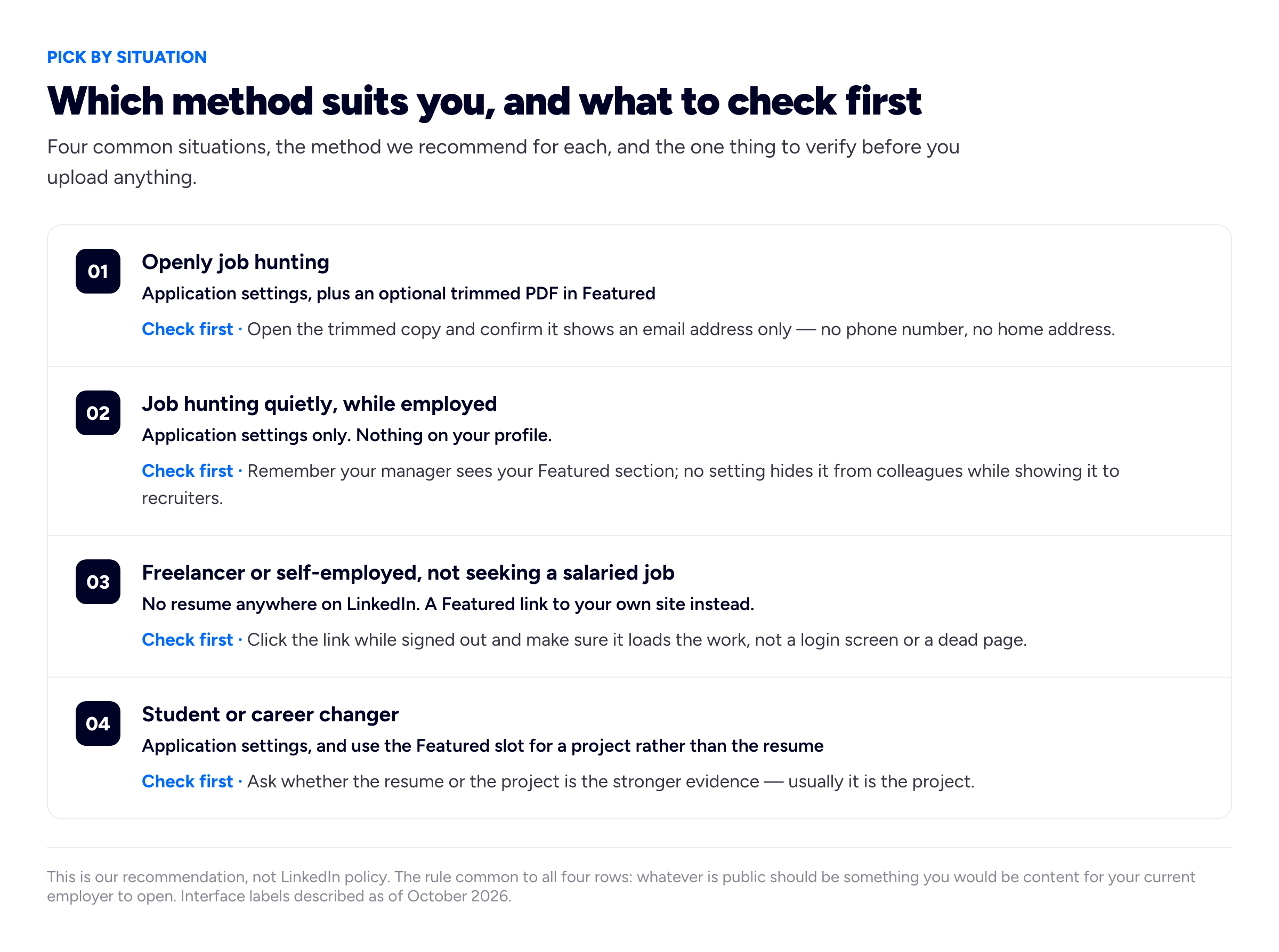
The rows differ in method, but the check-first column asks the same underlying question each time: would you be comfortable if your current employer opened this?
A link, not a file: what to put on your profile instead
There is a structural problem with a resume as the thing you show people, and it has nothing to do with LinkedIn. A PDF is a snapshot: accurate the day you export it, slightly wrong from then on, and every copy that has left your hands stays wrong. A URL is the opposite: one address, updated whenever you finish something, current for everyone who has ever had the link.
For salaried applications you still need the document, because the form asks for one. For everything else — a prospective client, an old colleague, someone who found you in a comment thread — a link shows the work at full size, with its context. That argument in full is portfolio versus resume; the mechanics are in where to put your portfolio link on your resume.
If you have nothing to link to, that is a weekend rather than a project. We build Bunfolio for this — a portfolio site on a free subdomain, starting from your LinkedIn profile — and turning a LinkedIn profile into a portfolio website covers what transfers. Build it elsewhere if you prefer; how to build a resume website and the career portfolio guide are platform-agnostic. Freelancers with a patchwork history should read how to put freelance work on a resume too, so the document and the site agree.
Having taken the resume off your profile, do not leave the space empty. Three things earn more attention than a PDF did.
- A headline that matches what you want to be found for. It travels everywhere your name appears. "Senior Associate at Marrow & Finch" — an invented firm — gives a stranger your employer and nothing about your work. Name the discipline, who you do it for and what you are known for; our LinkedIn headline generator drafts variants to react to.
- An About section written like prose, not a resume summary. Only the first two or three lines show before "see more", so specifics belong at the top. Write in the first person. The about me generator is free if you need a start.
- A Featured section of links rather than documents. Your site, a project page, a piece of writing, a talk. Each is current the day someone clicks it, and none holds a copy of your phone number.
Frequently asked questions
Can my employer see the resume I uploaded to LinkedIn?
It depends which of the three places you used. A resume in your job application settings is not visible on your profile, so colleagues cannot browse to it; only employers whose applications you submit receive it. A resume in Featured or a public post is visible to anyone who can see your profile, your manager included, and no setting hides it from colleagues while showing it to recruiters. Hunting quietly means application settings only, nothing public.
Does a resume on my profile get used when recruiters search LinkedIn?
We will not pretend to know how LinkedIn's recruiter search works internally, and nobody writing about it publicly does either. What is observable is more useful: the fields you fill in — headline, job titles, skills, About — are the structured content of your profile, while a PDF in Featured is only an attachment to it. Put the words you want to be found for in the fields themselves.
Should I put my CV on LinkedIn if I am outside the US?
The mechanics are identical wherever you are; the convention differs. A European CV often runs longer than a US resume and may include details a US resume omits, and a photograph is normal in some countries and discouraged in others. What to weigh is posting a public PDF of personal details, particularly under UK and EU data protection norms. The safe version everywhere: application settings for the file, a link on the profile.
Why can I not upload my CV to LinkedIn?
Work through four causes in order. The format: the dialog accepts PDF and Word documents and refuses anything else, so a Pages file, an image or a .zip will fail. The size: there is a cap and it is small, so a resume full of high-resolution images may exceed it. The stored list: a full list blocks uploads until you delete one. And the job itself, if it hands you to the employer's own system.
Where did my uploaded resume go?
Almost always it is in your job application settings under the Jobs tab, not on your profile. A resume uploaded during an Easy Apply form is saved into that list quietly, which is why files appear there that people do not remember adding. If it is genuinely gone, check whether you used a different account, and whether newer files pushed it off the list.
How we put this guide together
Bunfolio builds portfolio sites and gives away career tools, so this question reaches us constantly, usually from someone a recruiter has just quoted a resume back at. The mechanics here are description: what LinkedIn's interface does when you use it, written in October 2026 and checked against LinkedIn's own Help Center, which is the authority for the steps. We link it only at its root: help-article URLs are reorganised, and a dead link is worse than a search box.
Everything else is our recommendation: the three-places framing, renaming and pruning stored resumes, the four situation-based picks in the second diagram, the argument that a link beats a PDF outside a formal application, and replacing a profile resume with a headline, an About section and Featured links. Where we were unsure of a click path — the data export in particular — we say what the feature does and what to search for rather than inventing a menu.
We have deliberately not repeated the circulating percentages about recruiters and LinkedIn profiles: the share of recruiters said to use LinkedIn to find candidates, the proportion who reject a profile without a photo, the multiple by which a complete profile is supposedly more likely to be contacted. We could not trace any of them to a published method, a sample size or a dated report, and several are quoted by sites citing each other in a circle. Nor do we claim anything about how recruiter search or feed ranking works internally, because that is not documented. The honest version of this topic has almost no numbers in it, and the interface steps are dated on purpose.
The primary sources read while writing, beyond the Help Center: the LinkedIn privacy policy, for what the platform says about data you choose to make public; the GOV.UK summary of data protection, for the right to request a copy of your own data; the Europass CV format, which treats most personal details as optional; the National Careers Service guide to CV sections and Prospects' guide to writing a CV, for what belongs in a contact block; and the Purdue Online Writing Lab's introduction to résumés with Harvard's guide to creating a strong resume, for the document itself. Some are written for UK CVs and some for US resumes, so the conventions differ even where the content advice transfers.
Esme Trevail, the filename Esme-Trevail-Product-Designer-CV-2026.pdf and the firm Marrow & Finch are invented to show the shape of a good example, not drawn from a real person, document or company.
Related reading: turning your LinkedIn profile into a portfolio website, where to put your portfolio link on your resume, ATS-friendly resume formatting, portfolio versus resume, how to build a resume website and how long a resume should be.
More from the blog
October 16, 2026 · 16 min read
CV vs Resume: The Difference and Which One to Send
In the US a CV is an academic record and a resume is the short document; in the UK and most of the world, "CV" is the name for that short document.
October 3, 2026 · 16 min read
How to Make a Resume Stand Out: What to Change on the Page
A resume stands out by being the easiest one in the pile to say yes to, not by looking different. Here is how to rebuild the top of page one, turn duties into results (even without numbers), tailor ho...
September 23, 2026 · 18 min read
Portfolio vs Resume: Which One You Need, and When
A resume and a portfolio are not two formats of the same thing: one answers the screening question, the other answers "show me". This guide covers who needs which by profession, where the CV fits, and...