
October 7, 2026 · 26 min read
Free WordPress Portfolio Themes: The Eight Worth Shortlisting
The free portfolio themes on wordpress.org, named: Twenty Twenty-Five, Neve, Blocksy, Astra, GeneratePress, OceanWP, Perfect Portfolio and CleanPortfolio, and who each one suits. Then the part the listicles skip — what a free theme does not cover, and who is better off with something lighter.
Free portfolio templates for WordPress are real, there are plenty of them, and the place to get them is the official theme directory at wordpress.org/themes, where every theme is free to download and, per the theme review handbook, must be "compatible with the GNU General Public License". The eight worth shortlisting for a portfolio are Twenty Twenty-Five, Neve, Blocksy, Astra, GeneratePress, OceanWP, Perfect Portfolio and CleanPortfolio. Picking between them takes about twenty minutes. What takes longer — and what the theme listicles tend to leave out — is everything the theme does not include.
So this guide does both halves. First the themes, by name, with what each one's own directory listing actually claims and who we think each suits, because a shortlist you can act on is the point. Then the parts that sit around a free theme — the hosting, the updates, the backups, the plugin stack a portfolio quietly accumulates — and how to tell, before you start, whether that trade is worth making for your situation. If you have not settled the prior question of whether you need a site at all, our piece on whether freelancers need a website covers that first.
One disclosure before you read further, because it changes how you should weigh the last third of this article. Bunfolio makes hosted portfolio sites, which means we compete with "install a free WordPress theme". We have tried to earn the click anyway: every factual claim about WordPress below is quoted from WordPress's own documentation and named inline, there is a section that tells a large group of readers to use WordPress and ignore us, and we quote no prices for anything, our own category included.
Where the free themes actually live
There are two distinct things called WordPress, and the difference decides which free themes you can install at all. WordPress.com's own comparison page puts it plainly: WordPress.com "Includes managed hosting, which publishes your website to the world", whereas with WordPress.org "You can download the WordPress source code for free and upload it with a hosting provider of your choice". On the self-hosted side you can, in WordPress.com's words, "Install custom themes, or build your own". On WordPress.com, installing your own themes is tied to the plan you are on.
Everything in the theme list below is in the wordpress.org directory, which means it is installable on a self-hosted WordPress and on whichever WordPress.com plans permit custom themes. You install directory themes from inside your own admin — Appearance → Themes → Add New — rather than by downloading a zip, which also means updates arrive through the same screen as everything else.
Two practical notes on finding things there. The directory is filterable by tag, and the tags are the only structured, comparable information on a listing: portfolio, photography, accessibility-ready, block-themes, full-site-editing, grid-layout, style-variations. Filtering on two tags at once is the fastest way to a genuine shortlist — portfolio plus full-site-editing, for instance, surfaces small modern themes built entirely in blocks that no listicle covers, such as WPWheels' WPBlockfolio, described in the directory as a "Clean, professional one-page portfolio & resume block theme for freelancers, developers and designers". We have not used it; we mention it to show what the filters reach that a top-ten post does not.
The second note is that a theme's display name and its directory slug can differ, which costs people more time than it should. Catch Themes' theme is written "Clean Portfolio" everywhere it is discussed and lives at wordpress.org/themes/cleanportfolio, as one word. If a theme you read about appears not to exist, search the directory by author as well as by name before concluding it has been removed.
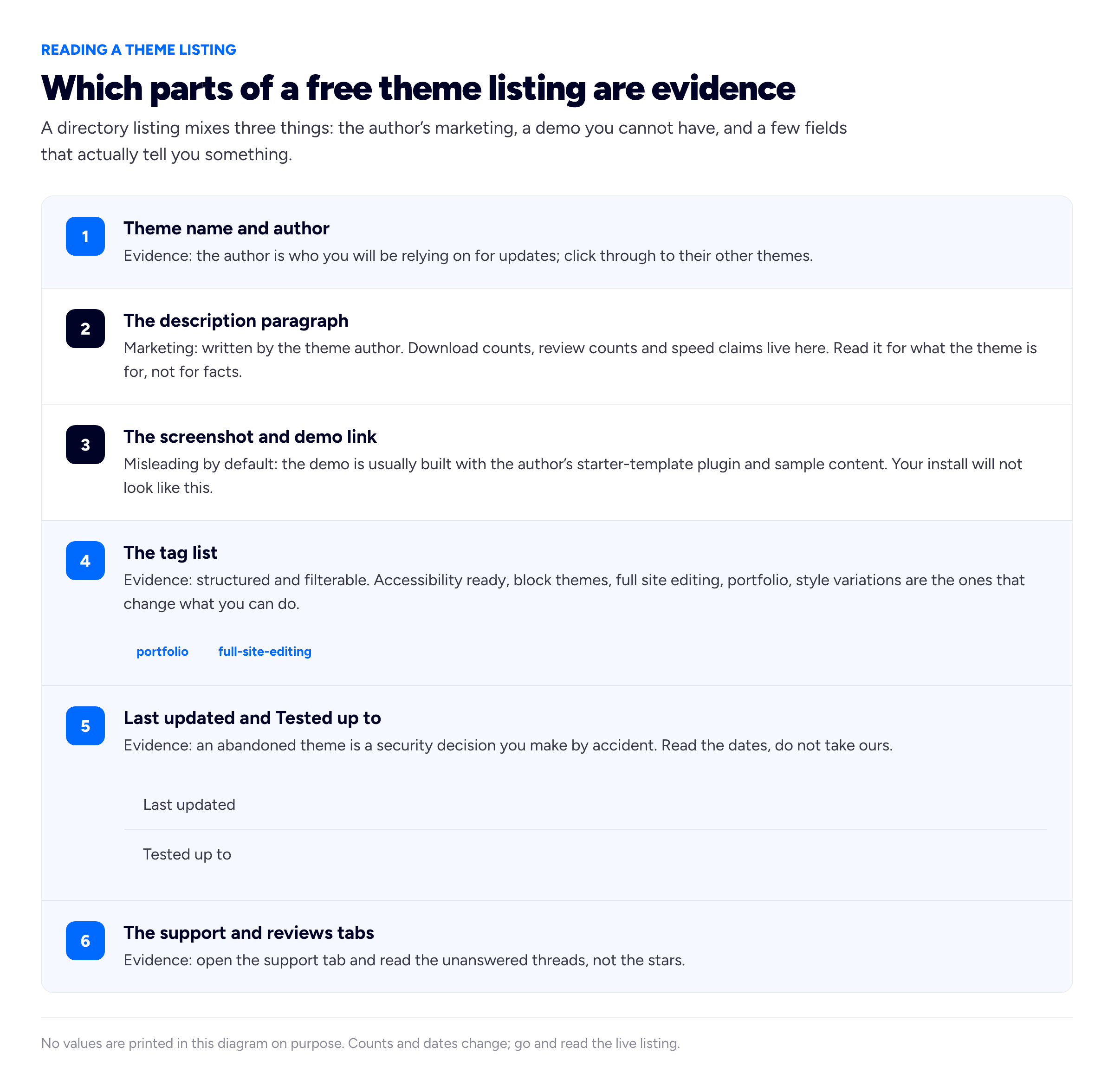
Region three is where most of the disappointment comes from. The screenshot is the theme plus a plugin plus content you do not have, and nothing on the page says so.
Eight free portfolio themes worth shortlisting
Each of these is in the wordpress.org directory, free, and installable from your own admin. The descriptions in quotation marks are the themes' own, taken from their directory listings; we have not repeated the download counts, review counts or speed claims some of those descriptions carry, because they are the author's marketing rather than an independent measurement. Everything we say about who a theme suits is our judgement.
Twenty Twenty-Five
The WordPress.org default theme, and the most under-recommended option on this list. Its listing describes it as emphasising "simplicity and adaptability", offering "flexible design options, supported by a variety of patterns for different page types". It is a block theme, carries both the portfolio and accessibility-ready tags, and ships style variations, so you can change the whole site's type and colour without touching a settings panel.
- Suits: anyone who wants a current, text-capable site with no vendor relationship at all. Writers, developers, consultants, researchers.
- Why we would start here: it is maintained by the project rather than a company with an upgrade path, it is tagged accessibility-ready, and because it is a block theme you get the Site Editor, which is where WordPress design is going.
- Watch for: it is a general-purpose theme, not a portfolio theme. There is no ready-made project grid waiting for you; you build one from blocks or a pattern.
Neve
Themeisle's theme, and the closest thing on this list to an all-rounder with portfolio intent. Its listing calls it "a next-generation, ultra-fast WordPress theme designed for top performance, SEO, and Core Web Vitals" — the vendor's claim, not ours — and says it is "fully compatible with the block editor, popular page builders (Elementor, Bricks, Oxygen etc), and WooCommerce". It carries the portfolio, accessibility-ready and grid-layout tags.
- Suits: a portfolio that also has to be a small business site — services, a blog, maybe a shop later.
- Watch for: breadth brings settings. If you want to be finished this evening, a theme that can become anything is not an advantage.
Blocksy
Creative Themes' theme, described in its listing as "a fast, modern WordPress theme with advanced WooCommerce support and full compatibility with the block editor". Its tags include accessibility-ready, block-editor-patterns, block-editor-styles and grid-layout.
- Suits: someone who wants fine control over headers, footers and spacing from a settings panel and expects to spend an afternoon on it happily.
- Watch for: it does not carry the
portfoliotag. Its project-showing layouts come from the blocks and patterns you assemble, not from a portfolio feature in the theme.
Astra
Brainstorm Force's theme, and the one most listicles lead with. Its own description calls it "lightning-fast and highly customizable" and says it "works perfectly with all page builders like Spectra, Elementor, Beaver Builder, etc." Note what its tag list does not include: neither portfolio nor accessibility-ready.
- Suits: people who have already decided to build with a page builder and want a neutral, well-supported base under it.
- Watch for: the demo sites that make Astra attractive are the vendor's starter templates, which arrive as a separate plugin. The free theme on its own is a blank, competent canvas.
GeneratePress
Published under the author name Tom, and described in its listing as "a lightweight WordPress theme built with a focus on speed and usability". The listing is unusually direct about its intent: "If you use page builders, GeneratePress is the right theme for you. It is completely compatible with all major page builders, including Beaver Builder and Elementor", and "We take full advantage of the block editor (Gutenberg), which gives you more control over creating your content."
- Suits: the technically comfortable, and anyone who would rather add the few things they need than switch off thirty they do not.
- Watch for: no
portfoliotag and noaccessibility-readytag. The free theme is deliberately spare, and spare means you are doing the layout.
OceanWP
Its listing says it "will enable you to create almost any type of website such a blog, portfolio, business website and WooCommerce storefront", and that it works "with the most popular page builders as Elementor, Beaver Builder, Brizy, Visual Composer, Divi, SiteOrigin, etc…". It is tagged accessibility-ready and block-editor-styles.
- Suits: a portfolio attached to a service business, especially if a shop is plausible later.
- Watch for: its description mentions portfolios while its tag list does not carry the
portfoliotag — a mismatch worth knowing about before you expect a portfolio feature to exist.
Perfect Portfolio
Rara Themes' theme, and one of the few here built for this job specifically. Its listing calls it "a free portfolio WordPress theme that will help you stand out from the crowd", "ideal for freelancers, photographers, digital marketers, agencies, graphic designers, video producers, web designers, web developers, and professional bloggers that want to depict their work in a beautiful layout", and lists "advanced features like Call To Action, services section, social media integration, WooCommerce integration". It carries the portfolio tag.
- Suits: someone who wants the portfolio structure decided for them and is happy to work inside it.
- Watch for: themes built around sections usually have a paid version, and the free one is the shape of the paid one with pieces removed. Decide whether you can live inside the free shape before you fill it with content.
CleanPortfolio
Catch Themes' theme — the one at the cleanportfolio slug — described in its listing as "A Free Portfolio WordPress Theme specially designed to unleash the creativity in you", and tagged portfolio, photography and one-column.
- Suits: image-led work that reads best full width — photography, illustration, interiors.
- Watch for: the same free-tier-of-a-paid-theme question as above, and the usual trap for image themes, which is that a grid wants pictures. If your best work is a decision rather than a screenshot, see what hiring managers actually look for in a developer portfolio before you commit to a gallery.
Why the demo does not look like your site
This is the most useful thing in this article and it is almost never explained, so here it is with a citation. The reason a free theme looks magnificent in its demo and empty on your install is partly sample content, but mostly rules. WordPress's theme review requirements forbid themes from carrying functionality that belongs in plugins. The handbook's list of what a theme must not include is explicit: "Custom post types", "Custom blocks", "Custom roles", "Shortcodes" and, as a catch-all, "Functionality that is not related to design and presentation".
Read that as a portfolio owner and it has a sharp consequence. A "project" with its own fields and its own archive page is a custom post type — so the structure of your portfolio cannot live in a directory theme. It lives either in blocks you assemble yourself, or in a plugin. The handbook also constrains how the theme may get you there: "Themes may only recommend plugins that are hosted on WordPress.org", and "Plugins may only be installed by user action, not automatically."
Nothing about that is bad design. It is the rule that means switching themes does not delete your work, which is a genuinely valuable property and the reason the rule exists. But it means the demo you clicked is the theme plus a starter-template or portfolio plugin plus content, and the free download is only the first of the three.
The practical move is to decide which plugins you are opting into before you pick the theme, not after. For a portfolio, people typically end up with some combination of a contact form, a gallery or project-grid plugin, an SEO plugin, image optimisation, caching and a backup plugin. That is our observation from the sites we see rather than a measured figure, and the number you need may be two. The point is that it is never zero, and each one is a thing that updates.
Block theme or classic theme — the choice that changes the editing
Every theme above falls into one of two camps, and the camp decides what editing your site feels like for the next few years.
If you install a block theme — Twenty Twenty-Five is one — you get the Site Editor. WordPress's documentation is unambiguous about the dependency: "The Site Editor is only available when you install and activate a Block theme on your site." It lets you "design the entire site including the header, footer, and everything in between, with blocks", through Appearance → Editor, and it exposes templates, template parts, patterns and site-wide styles.
If you install a classic theme — which is what Astra, GeneratePress, OceanWP, Perfect Portfolio and CleanPortfolio are, in the sense that matters here — your header and footer are controlled by that theme's own options panel instead, and the design vocabulary is the one the theme's author chose. Neither arrangement is wrong. But they are different products, the tutorials for one do not apply to the other, and "why does my WordPress not have Appearance → Editor" is the question that follows from not knowing which you installed.
One Site Editor behaviour is worth internalising before you start, because it surprises people: the documentation notes that "some changes (like changes to the Header and Footer templates) will apply to all pages of your site that use those templates, and not just the page you were working on". That is template thinking rather than page thinking. It is more powerful and less forgiving.
Child themes: where your edits survive, and where they vanish
At some point you will want to change something the theme's options do not expose, and a tutorial will tell you to edit a template file. Do that in the theme itself and WordPress's own theme handbook tells you exactly what happens: "the next time your theme is updated, your function will disappear!" The handbook's first stated reason for using a child theme is to "Allow parent themes to be updated without losing your modifications."
So if you intend to make any code-level change — a snippet in functions.php, an overridden template, more than a line or two of custom CSS — set up a child theme before you make it, not after you have lost it. If you have no intention of touching code, you do not need one, and most portfolio owners genuinely do not.
What the free theme does not cover
The theme is free. The site around it is a set of commitments, and we would rather lay them out than imply they are hidden costs. On a self-hosted WordPress these are yours; on managed WordPress hosting some of them are the host's. WordPress.com's comparison page draws that line for its own product — "Updates, backups, and free domain SSL are all handled automatically" — and says of the self-hosted route that the outcome "depend[s] on your host and hosting package".
A server that meets the requirements. WordPress.org's requirements page gives its recommended specification as "PHP version 8.3 or greater", "MariaDB version 10.11 or greater OR MySQL version 8.0 or greater" and "HTTPS support", and notes that "Any server that supports PHP and MySQL will do", with Apache or Nginx recommended. You do not have to understand any of that to use good hosting, but you do have to notice when your host's PHP version falls behind, because eventually something stops working.
A domain name. Separate from hosting, renewed separately, and the single most important thing on this list — it is the only part of the arrangement that is portable. Register it in your own name, at a registrar you log into yourself. Our guide to connecting a custom domain to a portfolio covers the DNS records involved and the handful of ways people get them wrong, and what "free" actually means across portfolio platforms explains why registering a domain and being allowed to connect one are two different costs on nearly every platform.
Updates, some of which are automatic and some of which are not. WordPress's upgrade documentation says automatic updates are enabled on most sites, that "Before WordPress 5.6, every site had automatic updates enabled for minor core releases and translation files only by default", and that "Starting with WordPress 5.6, new installations have automatic updates enabled for both minor and major core releases by default". Themes and plugins are the exception, and the wording matters: "By default, automatic background updates only happen for plugins and themes in special cases, as determined by the WordPress.org API response." In other words, the parts of your site most likely to need updating are the parts you update by hand.
Backups, which are two things and not one. WordPress's backup documentation separates the files — core, themes, plugins, uploads, configuration — from the database, which holds the content, and advises you to "Back up your WordPress database regularly, and always before an upgrade". The same page notes that while most hosts provide backup software, site owners "need to learn how to back up your own site files and restore them". The upgrade page repeats the habit: "Before you get started, it's a good idea to back up your website."
Security, which is explicitly yours. The hardening guide in WordPress's advanced administration documentation says "you should always keep up to date with the latest version of WordPress. Older versions of WordPress are not maintained with security updates", advises keeping plugins updated and deleting ones you are not using, and draws the responsibility line in one sentence we would put on a poster: "Web hosts are often responsible for the infrastructure on which your website sits, they are not responsible for the application you choose to install."
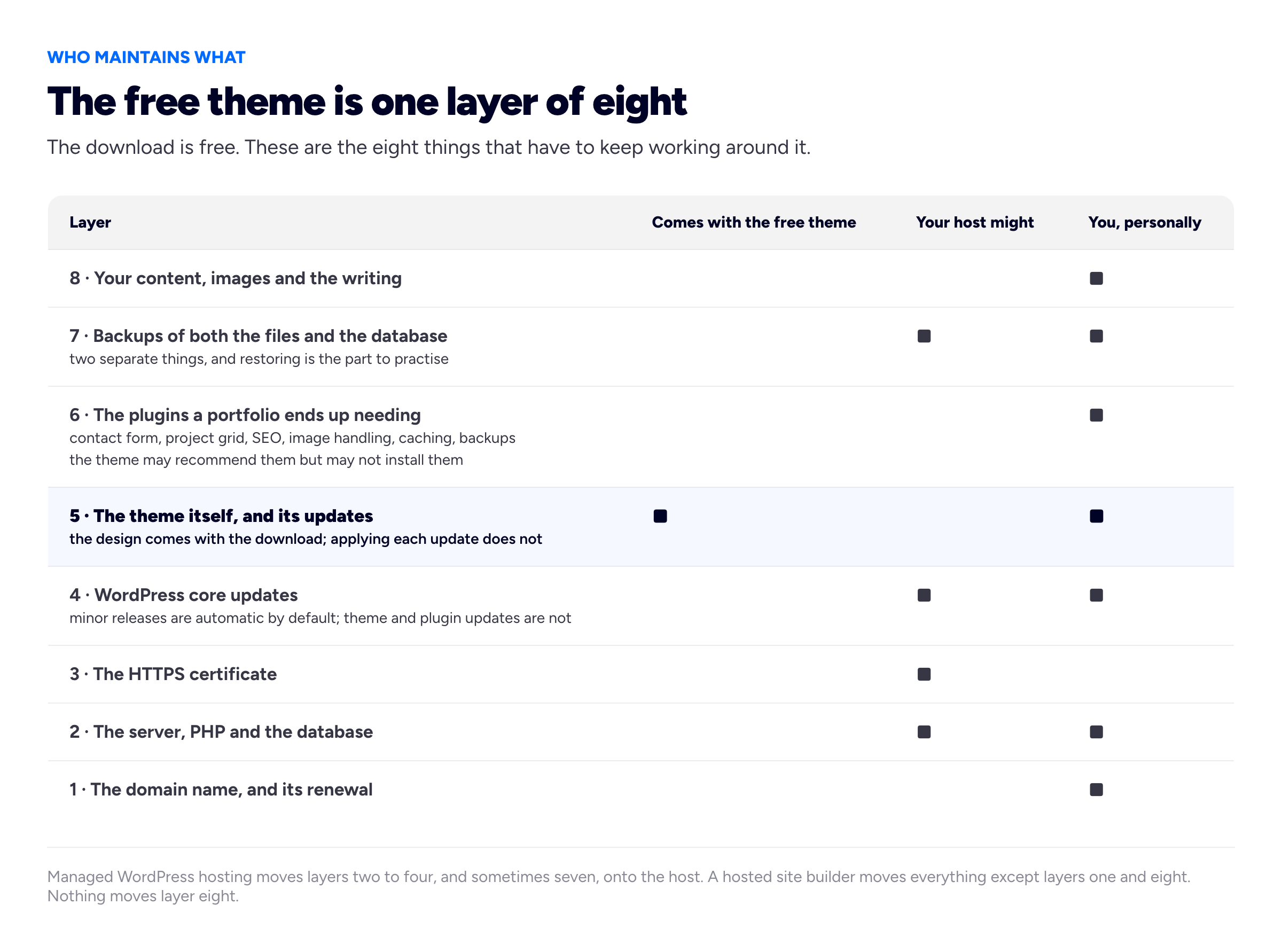
Layer eight is the one that decides whether anybody hires you, and it is the one every arrangement leaves entirely to you. Choose the arrangement that leaves you the most attention for it.
Who WordPress genuinely suits
We would be writing a worse article if we skipped this, so here is the honest case, and it is a strong one.
You want to own the whole thing. WordPress is open-source software you install on hosting you chose. Nobody can change its pricing out from under your portfolio, discontinue the product, or decide your account is in violation of something. For a site you intend to keep for a decade, that is worth real inconvenience, and no hosted builder — ours included — can offer it.
Your site has a second job. A portfolio plus a real blog you post to weekly, plus a shop, plus a members area, plus a mailing list. The moment the requirement list grows past "show my work and let people contact me", WordPress's extensibility stops being overhead and starts being the reason to choose it.
You enjoy this, or you are learning it on purpose. If you are a developer, building the site is a portfolio piece as much as a container for one, and the time is not a cost. If you are learning WordPress because clients will pay you for it, building your own site on it is the cheapest training available.
You already have a WordPress site that works. Then stay. Switching platforms is one of the most reliable forms of productive procrastination available, and a current site on a theme you already understand will beat the better one you are planning. Spend the weekend on two new case studies instead.
Who is better off with something lighter
Four situations, in our judgement, where the free theme is the cheapest part of a decision you will regret.
You want to be published this evening and never think about it again. You will not reliably apply plugin updates — not because you are careless, but because it is not your job and nothing reminds you. Your portfolio is one page: work, about, contact, done; our note on one-page versus multi-page portfolios argues that this is more people than admit it. Or you have tried this before and the site you built is now a stale WordPress install you are slightly afraid to log into.
If two or more of those describe you, here are the lighter options, including ours, with what each gives up.
WordPress.com instead of self-hosted
The same editor and the same ecosystem, with the infrastructure handled. Its own comparison page states that updates, backups and SSL are automatic, that plugins can be installed "on any paid plan" with updates "managed automatically", and that paid plans include "24/7 support from our expert Happiness Engineers", whereas the self-hosted route has "No dedicated support". What you give up is total control, and theme and plugin freedom is tied to the plan. If you like WordPress and dislike maintenance, this is the first thing to look at, and we would recommend it over our own product for anyone who wants the WordPress editor specifically.
A static site you build yourself
Nothing to update, nothing to hack, free hosting on several well-known platforms, and complete control of the markup. For developers this is frequently the right answer. For everybody else, be honest about whether you will add the next project to a site that requires a build step. The hand-built sites we see are either immaculate or two years stale, with very little in between.
A general-purpose site builder
Squarespace, Wix and the rest: more capable than a portfolio tool, more work than one, and a subscription with no free tier for a live site. If your site needs commerce or bookings as well as work, this is the obvious answer and we would not argue. We compare the field on the same axes, and with the same refusal to print a price, in our round-up of the best portfolio website builders.
A hosted portfolio site — including ours
Clearly labelled: Bunfolio is our product, so weigh this accordingly. You sign in, fill in a form or import a public LinkedIn profile, and get a live site on a free subdomain; connecting your own domain is an optional paid add-on. There are four templates with the same fixed set of sections — home, about, services, skills and tools, portfolio, testimonials, contact — which is the honest limitation and also the entire point: no theme to choose, nothing to update, no plugins. If you want to design your own layout, that constraint is a wall and WordPress is a better tool. If you want a free portfolio website that is live tonight and still live in three years without your attention, it fits. And if what you actually need this week is a document rather than a site, our free resume builder is lighter still and asks nothing of you afterwards. The same reasoning, applied to other starting points, is in our pieces on Adobe Portfolio alternatives and on what a published Notion page gives up as a portfolio, and the general case for a constrained tool is in what a portfolio website builder is for.
A shortlist you can run in an hour
Whichever way you are leaning, this is the order we would do it in.
- Decide the plugin stack first. Write down the things your site must do that are not design: contact form, project grid, SEO, backups. That list, not the theme, is what you are committing to maintain.
- Filter the directory by tag, not by listicle. Start with
portfolioplusaccessibility-ready, and addfull-site-editingif you want the Site Editor. - On each candidate's listing, read the dates and the support tab before the description. An unmaintained theme is a security decision you make by accident.
- Install two and put real content in both. Three actual projects and your actual about text, not sample content. A theme that looks superb with a demo and bad with your work is a theme that does not suit your work.
- Register the domain in your own name on day one and point it at whatever you build. It is the only part you keep when you change your mind.
- Cut the project count. Whatever you were planning, it is probably too many — see how many projects a portfolio should hold — and then make it findable with the short list in our portfolio SEO guide.
Frequently asked questions
What is the best free portfolio template for WordPress?
There is no single best one, but our shortlist is Twenty Twenty-Five if you want a current block theme with no vendor relationship, Neve if the site also has to be a small business site, Perfect Portfolio or CleanPortfolio if you want the portfolio structure decided for you, and GeneratePress or Astra if you intend to build with a page builder on a neutral base. All are in the wordpress.org theme directory and installable from Appearance → Themes → Add New.
Are free WordPress themes safe to use?
Themes in the official wordpress.org directory are reviewed and must be GPL-compatible, which makes them a reasonable starting point; themes from a zip file you found elsewhere are a different proposition entirely. The bigger risk is not the theme's origin but its abandonment: WordPress's own hardening guide says older versions are not maintained with security updates, and the same logic applies to a theme nobody has touched in years. Read the last-updated date on the listing.
Can I use a free WordPress portfolio theme on WordPress.com?
Only on plans that allow installing custom themes. WordPress.com's own comparison page describes installing custom themes as a plan-dependent feature on its platform, while the self-hosted WordPress.org route lets you "Install custom themes, or build your own". Check the plan you are on before you fall in love with a directory theme.
Why does my site not look like the theme's demo?
Because the demo is the theme plus sample content plus, usually, a plugin. The WordPress theme review requirements forbid a theme from including custom post types, custom blocks or shortcodes, or any "Functionality that is not related to design and presentation", so the portfolio features in a demo often live in a companion plugin that you install separately. The theme may recommend plugins hosted on WordPress.org, but the handbook says they "may only be installed by user action, not automatically".
Do I need a plugin to make a portfolio in WordPress?
Not necessarily. With a block theme you can build a project grid out of core blocks and patterns and never install a portfolio plugin. You are likely to want a contact form plugin regardless, and if you want each project to be a proper content type with its own archive, that is a custom post type, which by the review rules cannot come from a directory theme.
Is a free WordPress theme good enough to get clients?
In our experience clients notice the work, the writing and whether the contact route functions — not the theme. A free theme with three well-written projects beats a paid theme with a gallery of thumbnails and no explanation. Spend the time you would have spent choosing a theme on the case studies instead.
How much does a WordPress portfolio site actually cost?
We deliberately do not quote figures, because hosting and domain prices change and a stale number in a comparison is worse than none. The structure of the cost is what to plan around: the theme is free, the domain renews yearly, hosting is ongoing, plugins are free until one of them is not, and your own maintenance time is the item nobody budgets. Get the current numbers from the host and registrar you are actually considering, on the day you decide.
How we put this guide together
We make a competing product, and this article should be read with that in mind. Bunfolio sells hosted portfolio sites, so the sentence "use a free WordPress theme" costs us a customer. What we did to keep the piece usable anyway: the first half is a real shortlist with real theme names and no affiliate links of any kind; we recommended WordPress outright for four groups of readers and told readers with a working WordPress site to stay put; we recommended WordPress.com over our own product for anyone who wants the WordPress editor without the maintenance, and a static site over it for developers; we described our own fixed sections as a limitation rather than a philosophy; and we quoted no prices for anything, including ourselves.
Every factual claim about WordPress above is quoted from WordPress's own documentation and named where it appears. Sources, all read on 10 October 2026: the WordPress.org theme directory and the individual listings for Twenty Twenty-Five, Neve, Blocksy, Astra, GeneratePress, OceanWP, Perfect Portfolio and CleanPortfolio (every quoted description, author name and tag); the theme review requirements (GPL compatibility, the prohibited functionality list, and the rules on recommending and installing plugins); the Site Editor documentation (that it requires a block theme, and that header and footer template changes apply site-wide); the child themes page in the theme handbook (that edits to a parent theme disappear on update); WordPress server requirements (the recommended PHP, database and HTTPS specification); the upgrading page (which updates are automatic by default, and that plugin and theme updates are not); the backup page (files and database as two separate jobs, and backing up before an upgrade); the hardening page (keeping core and plugins current, and where a host's responsibility ends); and WordPress.com's own WordPress.com versus WordPress.org comparison (managed hosting, automatic updates and backups, plan-dependent plugin and theme installation, and support). The searchability points are consistent with Google's SEO starter guide. We are not affiliated with, endorsed by or partnered with WordPress, Automattic or any theme author named here.
We deliberately left out several numbers that fill other articles on this query. We have not repeated any theme's download count, active-install count, review count, star rating or speed claim, even where the theme's own directory description states one: those are the author's marketing or a figure that changes weekly, and we will not print a number we have not verified independently. We also left out the WordPress market-share percentage that appears in almost every article on this subject, the number of themes in the directory, and any figure for how many hours a month a WordPress site takes to maintain. We have no measurement for the last one, and the honest version of that claim is a shape, not a number.
The judgements are ours and are opinions with reasons attached rather than findings: who each theme suits and what to watch for, the claim that deciding your plugin stack should precede choosing a theme, the four situations where something lighter is better, the eight-layer responsibility model in the second diagram, and the hour-long shortlist. They come from building and hosting portfolio sites and from watching which ones go stale and why. No real person, site or client is described in this guide; any example scenario is invented for illustration.
Related reading: Adobe Portfolio alternatives, what a published Notion page gives up as a portfolio, what a free portfolio website really includes, how to connect a custom domain to your portfolio, how to build a resume website and the portfolio SEO guide.
More from the blog
July 23, 2026 · 14 min read
Developer Portfolio: What Hiring Managers Actually Look For
Portfolios are not read as showcases — they are read as risk assessments. Here is the order the checks happen in, which projects earn their place, and what quietly disqualifies you.
August 6, 2026 · 14 min read
How to Write a Portfolio Case Study (With a Six-Part Template)
A six-part skeleton with word budgets, the sentence-level difference between describing activity and presenting evidence, and what to do when you have no numbers or the work is under NDA.

August 14, 2026 · 14 min read
Portfolio SEO: How to Get Your Portfolio Found on Google
What a portfolio site can realistically rank for, the six on-page fields that do most of the work, the speed thresholds Google actually measures, and what is not worth your time.