
November 17, 2026 · 19 min read
How to Add a Promotion on LinkedIn (and Make It Read as Progress)
To add a promotion on LinkedIn, add the new title as a separate position at the same company, dated to the month it took effect, then give the old role an end date with no gap. LinkedIn groups positions at one company when they are listed within a month of each other, so the promotion shows as progression rather than a new job.

To add a promotion on LinkedIn, do not edit your old job title. Add the new title as a separate position at the same company, then give the old position an end date. On a computer, go to your profile, scroll to Experience, click Show all experiences, click the Add icon, enter the new title with exactly the same company, set the start date to the month the promotion took effect, and save. Then open the earlier role with its Edit icon, end it in the month before (or the same month), and save again. On the mobile app it is the same: tap your profile photo, scroll to Experience, tap Add, fill in the role, tap Save, and edit the older one. LinkedIn groups positions held at the same company under one company heading, but its help page says they have to be listed within a month of each other, so a gap between the two dates is the usual reason a promotion shows up as two separate jobs.
That is the whole procedure, and LinkedIn's own help pages cover it well. What they do not help with is everything around it: whether to tell your network, what goes in each role's description so the two entries do not just repeat each other, when to change your headline, whether a sideways move or a renamed job counts as a promotion, how far back you can date it, and what to do when you got more responsibility but no new title. This guide walks through the steps first, then all of those, using one invented example throughout.
The example: one promotion, done properly
Hana Takeda joined Corbel Energy, an invented utility, as a Grid Planning Analyst in March 2023. In October 2025 her manager, Marcus Ellery, the Head of Network Planning, promoted her to Senior Grid Planning Analyst. She now leads the connection-request reviews her team used to share out, and she supervises a graduate analyst.
Her LinkedIn profile, before she touched it, said Grid Planning Analyst at Corbel Energy, March 2023 to present, with a description covering everything she had done since joining. The tempting shortcut is to overwrite the title with the new one and leave the start date alone. That throws the promotion away: the profile would say she joined Corbel as a senior analyst, which is less impressive than being hired, doing well and being moved up. The progression is the point, so the profile has to show two roles.
How to add a promotion on desktop
These steps follow LinkedIn's help pages "Manage your profile Experience section" and "Update your current position in your introduction section", which we read on 16 November 2026. LinkedIn changes its interface often, so if a label has moved, look for the same action under a slightly different name.
- Open your profile. Click the Me icon at the top of your LinkedIn homepage, then View Profile.
- Go to Experience. Scroll down to the Experience section and click Show all experiences.
- Add the new role. Click the Add icon at the top of the section. The help page also describes a second route, from the Add profile section button in your introduction, then the Core dropdown, then Add position. Both open the same Add experience window.
- Fill it in. LinkedIn's help page only calls these "the fields provided", so the exact labels may differ on your screen. What matters is the new title, the company picked to match your existing entry exactly (choose the same company page from the suggestions rather than typing a variant), the month and year the promotion took effect, and a description written for the new role only. Leave this role marked as current.
- Decide about notifying your network before you save. The Add experience window has a switch for this, covered below.
- Save.
- End the old role. Back in Experience, click the Edit icon beside the earlier position, mark it as no longer current, set its end date to the month before the new role began or the same month, and click Save.
Refresh the profile. If it has worked, Corbel Energy appears once, with two titles underneath, the newer one on top. If it shows two separate Corbel entries, look at the dates first. The other common cause is a company mismatch: one role linked to Corbel's company page and the other typed as plain text, which LinkedIn does not treat as the same employer.
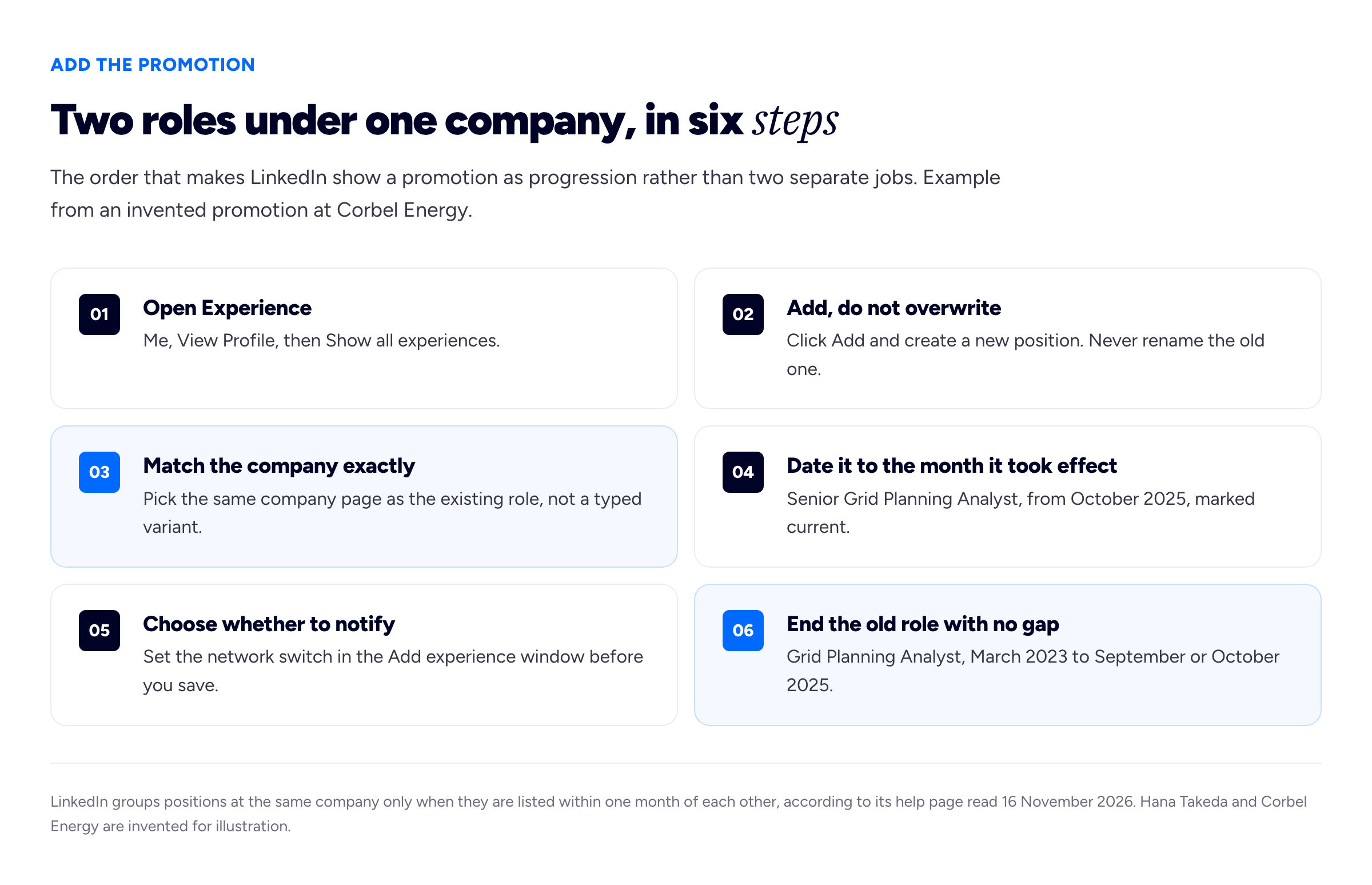
A gap between the two dates, or a company typed two different ways, is what splits one employer into two entries.
How to add a promotion on the mobile app
The mobile steps in the same help page run in parallel:
- Tap your profile photo to reach your profile.
- Scroll to the Experience section.
- Tap the Add icon to the right of the section heading. As on desktop, there is also a route through Add section, then Core, then Add position.
- Fill in the new role in the Add experience screen, check the network notification switch, and tap Save.
- To end the old role, tap the Edit icon on the Experience section, then the Edit icon again beside that position. Set the end date and tap Save.
Make the new role your headline position
The block at the top of your profile, with your name, headline and current employer, is the introduction section. According to LinkedIn's "Update your current position in your introduction section" page, it shows your current position and company from Experience, and if you have more than one current position, the one with the most recent start date comes first. You can choose which one appears using the Primary position dropdown in the Edit intro window, which you reach with the Edit icon in the introduction.
For a normal promotion you will not need to: once the old role has ended, the new one is your only current role. If you hold two current roles on purpose, LinkedIn's "Reorder current positions" page explains the Sort icon; only roles without an end date can be reordered.
One more detail from the same page: if you keep a profile in a second language, you have to make the change there as well. It does not carry across on its own.
Should you notify your network?
LinkedIn's help page "Share profile updates with your network" lists promotions among the changes it can tell your connections about, along with job changes, education changes and work anniversaries. You can set it in two places: per edit, with the switch in the Add experience window, or across your whole account under Settings & Privacy, then Visibility, then Share profile updates. The page also says job updates can take up to two hours to reach your network, and that anyone who opens your profile sees your edits as soon as you save, whether or not you notified anyone. Switching notifications off hides the announcement, not the change.
Whether to use it is a judgement call. Our view:
- Notify when the promotion is real, settled and public inside the company. If it has been announced to your team, it is fine for your network to know. It is a useful reminder to former colleagues, recruiters and clients of what you now do.
- Do not notify before it is official. If the new title takes effect next month, or HR has not told the wider team, wait. A manager who learns about your promotion from LinkedIn has been put in an awkward spot.
- Switch it off for tidying and backfilling. Rewriting old descriptions, fixing dates or adding a promotion from two years ago should not reach anyone's feed; turn sharing on only for the edit that adds a new role.
If you want to say more than the automatic update does, write a short post: a sentence on the new role, a thank-you to the people who helped, and nothing about pay. Hana's version: "I've started a new role as Senior Grid Planning Analyst at Corbel Energy, leading our connection-request reviews. Thank you to Marcus Ellery and the network planning team, who have taught me most of what I know about the grid."
What to write in each role so they do not repeat
This is where most promotions on LinkedIn fall apart. People either leave the old description sitting under the new title, or copy it into both roles and add a line. Each role should answer a different question.
- The earlier role answers "what did you prove?" It should end on the work that earned the promotion: the results, the problem you took on that nobody asked you to, the thing your manager pointed to when making the case. Write it in the past tense.
- The new role answers "what were you trusted with?" Lead with what changed: the scope, the people, the decisions that are now yours. Write it in the present tense, and add results as they come.
Here is Hana's old description, the one that covered her whole time at Corbel:
Analyst in the network planning team. Responsible for assessing connection requests, modelling network capacity and producing reports for stakeholders. Strong attention to detail and experience with power-flow modelling tools.
It describes the job advert, not Hana. Split and rewritten, it becomes two entries.
Grid Planning Analyst, March 2023 to September 2025:
Assessed connection requests from solar and battery developers against network capacity. Rebuilt the team's capacity spreadsheet into a shared model that the whole planning team now uses for first-pass assessments. Took over the backlog of delayed requests in 2024 and cleared it, writing the checklist the team still uses to avoid one building up again.
Senior Grid Planning Analyst, October 2025 to present:
Lead the review of all new connection requests for the region and sign off first-pass assessments before they go to engineering. Supervise and train the team's graduate analyst. Represent planning in the weekly meeting with the connections team, where disputed assessments are settled.
Notice what moved. The backlog and the shared model, which are why she was promoted, stayed with the earlier role, because that is when she did them. The new role does not repeat "assessed connection requests"; it says she now leads and signs off that work, which is the difference a reader wants to see.
A test: cover the titles. If you cannot tell which description is senior, rewrite the newer one. The same rule applies to your skills. If you have attached skills to each position, put the new ones (supervision, sign-off, stakeholder meetings) on the new role, rather than duplicating the whole list. Our guide to the resume skills section covers how to choose which skills are worth naming at all.
A portfolio site also gives a reader somewhere to see the model you built, which a bullet can only describe; our guide to turning a LinkedIn profile into a portfolio site shows what carries across.
Update your headline and About section
Your headline is the line under your name, and it follows you everywhere: search results, comments, connection requests. LinkedIn does not change it for you when you add a role. If your headline is still "Grid Planning Analyst at Corbel Energy", it now contradicts the introduction section directly beneath it.
The quick fix is to swap in the new title. A better fix is to use the promotion as a reason to write a headline that says what you do rather than repeating your job title, because your title is already shown right underneath it. Compare:
- Before: Grid Planning Analyst at Corbel Energy
- Swap only: Senior Grid Planning Analyst at Corbel Energy
- Rewritten: Senior Grid Planning Analyst | Getting solar and battery projects connected to the grid faster
The last version gives someone who finds Hana in search a reason to click. If you are stuck, our collection of LinkedIn headline examples shows the patterns that work across different jobs, and the free LinkedIn headline generator will draft a few options from your new title and what you are known for, for you to edit.
The About section needs a lighter touch. If it opens with your old title or describes your job in the present tense ("I assess connection requests..."), update that sentence. One clause is usually enough: "I joined Corbel Energy in 2023 and now lead its connection-request reviews." If your About section reads like a CV summary, the advice in our guide to writing a professional summary applies here too.
Promotion, title change, internal move or acting role?
Not every change at work is a promotion. Your profile should not claim more than happened, nor hide progress. Here is how we would handle the common cases.
A promotion
A new, more senior title, usually with more scope, more people or more pay. Add a new position, as above. This is the straightforward case.
A title change with the same job
Sometimes a company renames roles across the board: everyone called Analyst becomes Planning Specialist. Do not add a second position, which would look like a promotion that did not happen. Edit your existing role to the current title, and if the old title matters for search (it is what recruiters type, say), mention it in the description: "Title changed from Grid Planning Analyst in 2025 after a team restructure." Keep notifications off.
An internal move
A move to a different team at the same level, such as from planning to the connections team. Add it as a new position at the same company, exactly like a promotion, because the work changed. A sideways move is worth showing: the company kept you and gave you something new.
An acting or interim role
If you covered your manager's job for six months while it was vacant, the honest version is the title with "Acting" or "Interim" in front, dated to the cover period, listed as its own position. If the cover was short, a line in your main role's description is enough. Do not drop "Acting" to make it look permanent; a reference check will find it.
A promotion with no new title
This is common at small companies and start-ups, where titles are loose and the founder never got round to giving you a new one. You took on hiring, or a client portfolio, or a team of three, but your title is still Marketing Executive. You cannot invent a title your employer never gave you; if someone checks, the mismatch hurts you more than the promotion helps. You have three honest options:
- Ask for the title. If you are already doing the job, asking your manager to confirm a title that matches it is a reasonable, small request, and it costs the company nothing. This is the best fix.
- Split the role by scope. Keep the same title in two positions, dated to the change, with the second description opening on what you took over: "From April 2025, also responsible for hiring and managing two junior designers."
- Show it inside one role. Keep a single position and make the change the spine of the description, in date order: what you started with, then what was added and when.
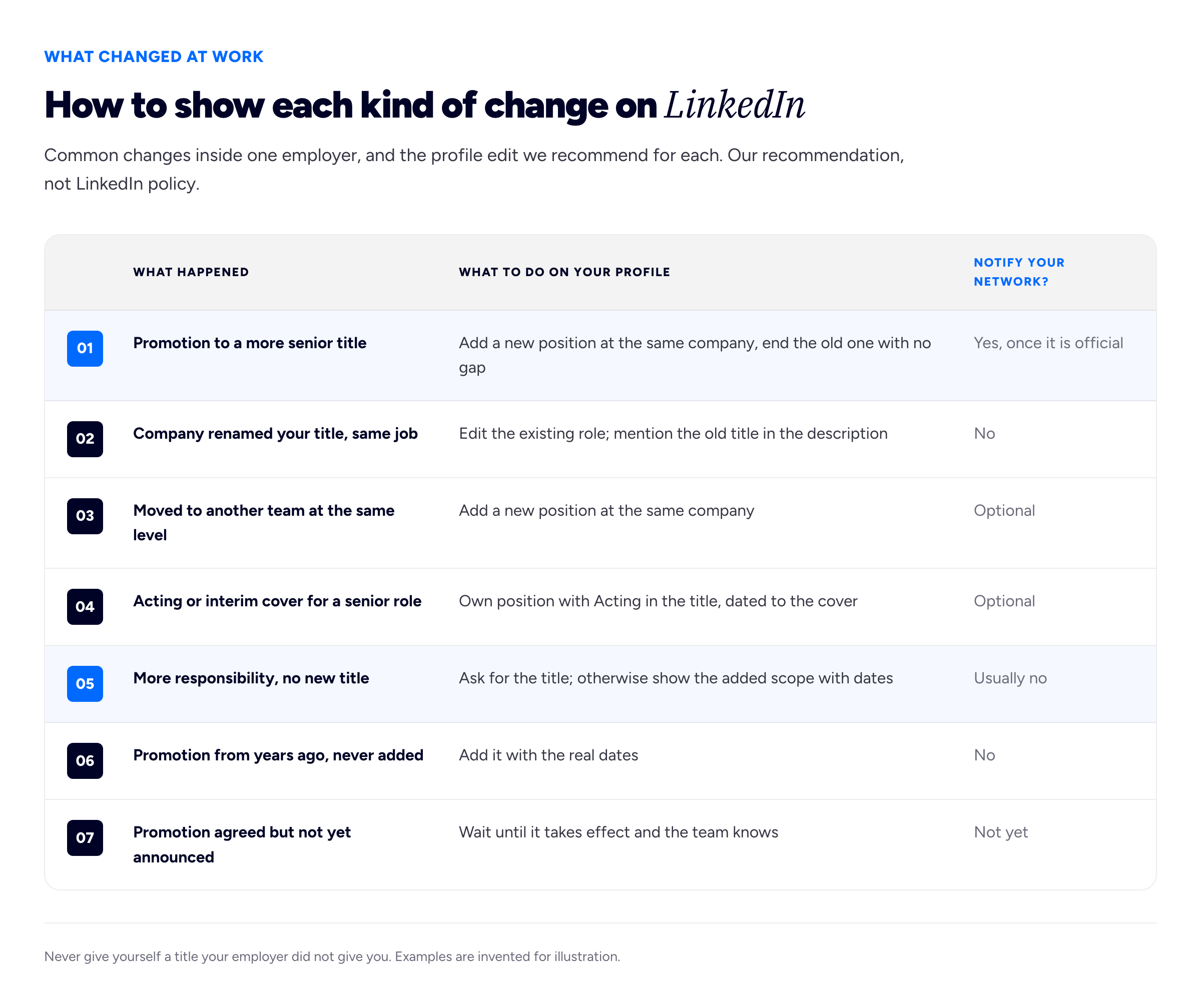
The rule underneath every row: the profile should match what your employer would confirm if someone asked.
Backdating a promotion you never added
If your profile shows one long role at a company where you actually held three, fix it: six years under one title can read as six years without progression.
Add each earlier role with its real start and end dates, from the oldest up, so the dates join without gaps. Turn network notifications off for all of it, for the reason above. Then rewrite the descriptions using the "what did you prove / what were you trusted with" split.
Use the real dates, even if they are approximate. If you cannot remember the month, the month on your promotion letter, payslip or HR record is the one to use. Do not move dates to make a promotion look faster than it was; it is exactly the kind of thing a background check compares.
Mirror it on your resume
Your resume and your LinkedIn profile should tell the same story, because recruiters read both and notice when they disagree. The usual resume format for a promotion is one company heading with the total dates, then each title as a sub-heading with its own dates and bullets, newest first:
- Corbel Energy, March 2023 to present
- Senior Grid Planning Analyst, October 2025 to present: two or three bullets on scope and results
- Grid Planning Analyst, March 2023 to September 2025: two or three bullets on what earned the promotion
Use the same titles and dates as LinkedIn. The bullets can be tighter and tailored to each application.
If you have just updated your resume, you can also attach it to your LinkedIn profile or to applications; our guide on how to add your resume to LinkedIn covers where it goes and who can see it. And if you are now thinking about what the new role is worth, our salary negotiation guide applies to internal promotions as well as new offers.
Mistakes that undo the promotion
- Overwriting the old title. The promotion disappears and your start date now says you were hired senior.
- Leaving both roles current. The profile looks as if you hold two jobs, and your introduction may still show the old title.
- A gap or two spellings. Either can split one employer into two entries.
- The same description twice. The reader cannot see what changed, which is the only thing they wanted to know.
- Forgetting the headline, or announcing it before the team knows.
Frequently asked questions
How do I add a promotion on LinkedIn without creating a new job?
Add the new title as a new position at the same company and end the old one in the same or previous month. LinkedIn's help page says positions at the same company are grouped automatically when they are listed within a month of each other, so it will appear as one employer with two titles, not as a new job. Make sure both roles link to the same company page.
Why are my two roles at the same company not grouped together?
The usual causes are a gap of more than a month between the end of one role and the start of the next, or the company entered differently on each, such as one linked to the company page and one typed as plain text. Fix the dates so they join up and choose the same company page for both, then refresh your profile.
Should I notify my network when I get promoted?
Our recommendation is to notify once the promotion is official and the wider team knows, and to keep notifications off for tidying edits and for promotions you are adding years later. LinkedIn lists promotions among the updates it can share, and you can set this per edit in the Add experience window or for your account under Settings & Privacy, then Visibility.
Should I just change my job title on LinkedIn instead?
Only if your job did not change, for example when your company renamed every role in a restructure. For a real promotion, changing the title in place hides the progression and makes it look as if you were hired at the senior level. A new position under the same company shows the step up.
Can I backdate a promotion on LinkedIn?
Yes. Add the past role with its real start and end dates, the ones your employer would confirm, and turn off network notifications first so nobody is congratulated on old news.
How do I show a promotion if my title did not change?
First, ask your employer whether they will confirm a title that matches the work, which is the cleanest fix. If not, either keep one position and describe the added responsibilities with the date they started, or split it into two positions with the same title and a description that opens with what you took over. Never use a title your employer did not give you.
Do I need to change my headline after a promotion?
LinkedIn does not update your headline when you add a position, so if it still shows your old title you should change it. It is worth going further than swapping the title: a headline that says what you do and for whom gives searchers more reason to click than the title they can already see beneath it.
How we put this guide together
The platform steps in this guide come from LinkedIn's own help pages, which we read on 16 November 2026: Manage your profile Experience section (adding, editing and deleting positions on desktop and mobile), Update your current position in your introduction section (the Primary position dropdown, the rule that positions at the same company are grouped when listed within one month of each other, and secondary-language profiles), Reorder current positions in Experience section and Share profile updates with your network (which updates can be shared, the two places to set it, and the two-hour delay for job updates). The help pages describe the fields in the Add experience window only as "the fields provided", so where this guide mentions the title, company, dates and description, it describes what the form asks for in general terms rather than quoting labels. LinkedIn changes its interface often; if a step no longer matches, the help pages above are the place to check.
Everything else is our recommendation, not sourced fact: when to notify your network, the "what did you prove / what were you trusted with" split between descriptions, the handling of title changes, internal moves, acting roles and promotions without a title, the advice on backdating, and the resume format. Those come from writing career tools at Bunfolio, not from measured data.
We have deliberately left out two kinds of figures that commonly appear in articles on this topic. The first is statistics about how much more often recruiters view or message profiles that show a promotion, or how many more congratulations a notified update receives; we could not trace any of them to a published method, sample and date. The second is character limits for job titles, descriptions and headlines: the numbers circulating come from old third-party posts that disagree with one another, and we found no current LinkedIn Help page stating them, so we do not quote any.
Hana Takeda, Marcus Ellery and Corbel Energy are invented for illustration, as are the promotion, its dates, the role descriptions, the announcement post and every detail in both diagrams.
Related reading: LinkedIn headline examples, how to add your resume to LinkedIn, the resume skills section and turning your LinkedIn profile into a portfolio site.
More from the blog

October 15, 2026 · 19 min read
How to Add Your Resume to LinkedIn (and When Not To)
A resume can live in three different places on LinkedIn and they do different jobs. Here is how each works, who sees it, and when a link beats a file.

November 19, 2026 · 18 min read
LinkedIn Headline Examples: 30+ Headlines and Why They Work
A strong LinkedIn headline names the role you want to be found for, narrows it with a specialism, and adds one piece of proof or the people you help. Here are more than thirty examples for job-seekers...

November 18, 2026 · 19 min read
Words to Describe Yourself, and How to Make Them Believable
Good words to describe yourself are specific and provable: reliable, thorough, calm, candid, curious, resourceful, decisive, patient and persistent all work, as long as each comes with evidence and a...